How to invite Cabos to Microsoft Teams meeting
Want Cabos to join and transcribe your Microsoft Teams meetings? Before getting started, there are a few Microsoft Teams admin settings you'll need to configure for everything to work properly.
🔧 Note: These settings require Microsoft Teams admin access. If you don't have admin privileges, please forward this guide to your IT administrator.
Table of Contents
Step 1: Enable Guest Access
Since Cabos joins your meetings as a guest account, you need to enable guest participation in your Teams admin settings.
- Go to the Microsoft Teams Admin Center and sign in with your admin account.
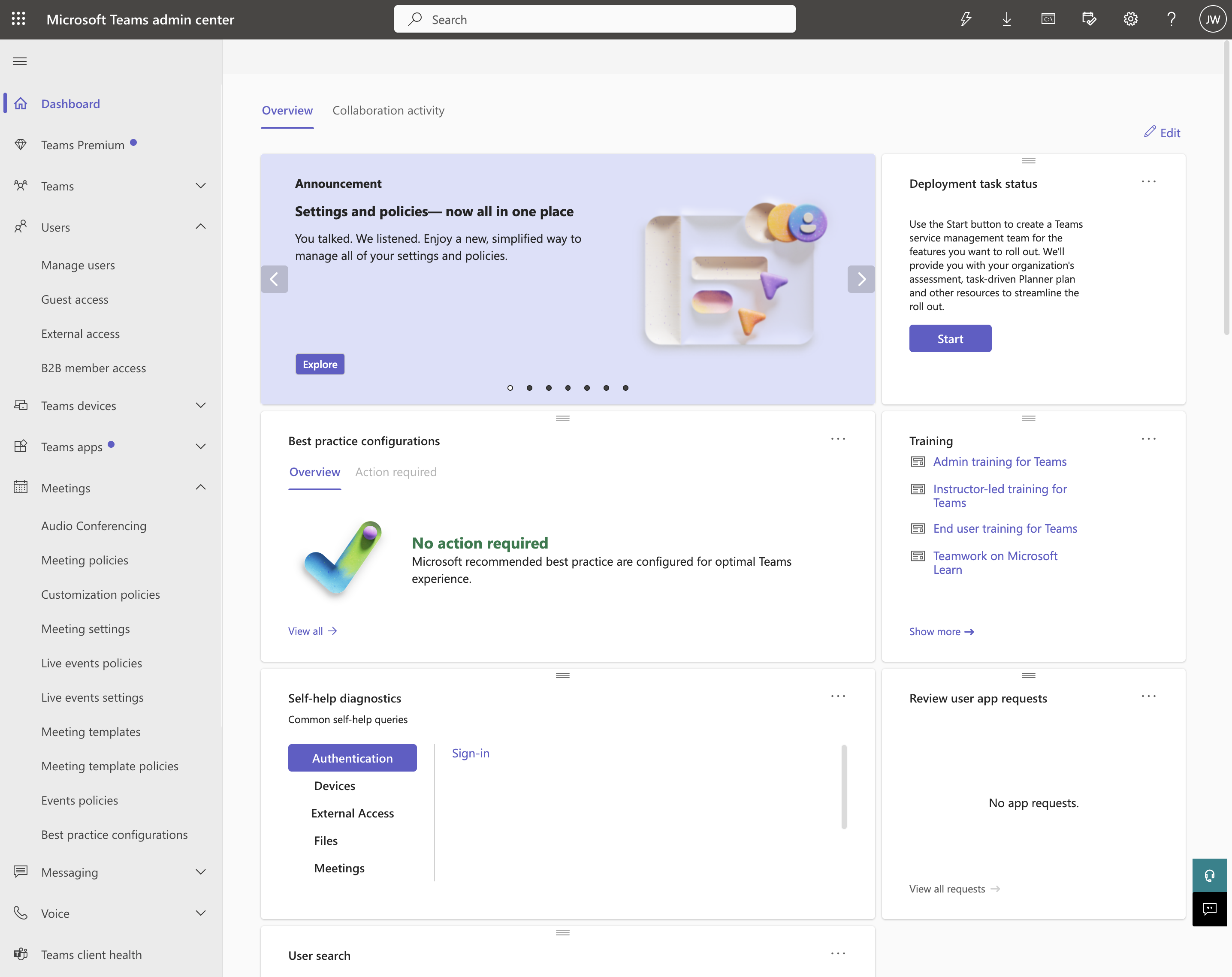
- From the left sidebar, navigate to Users > Guest access.
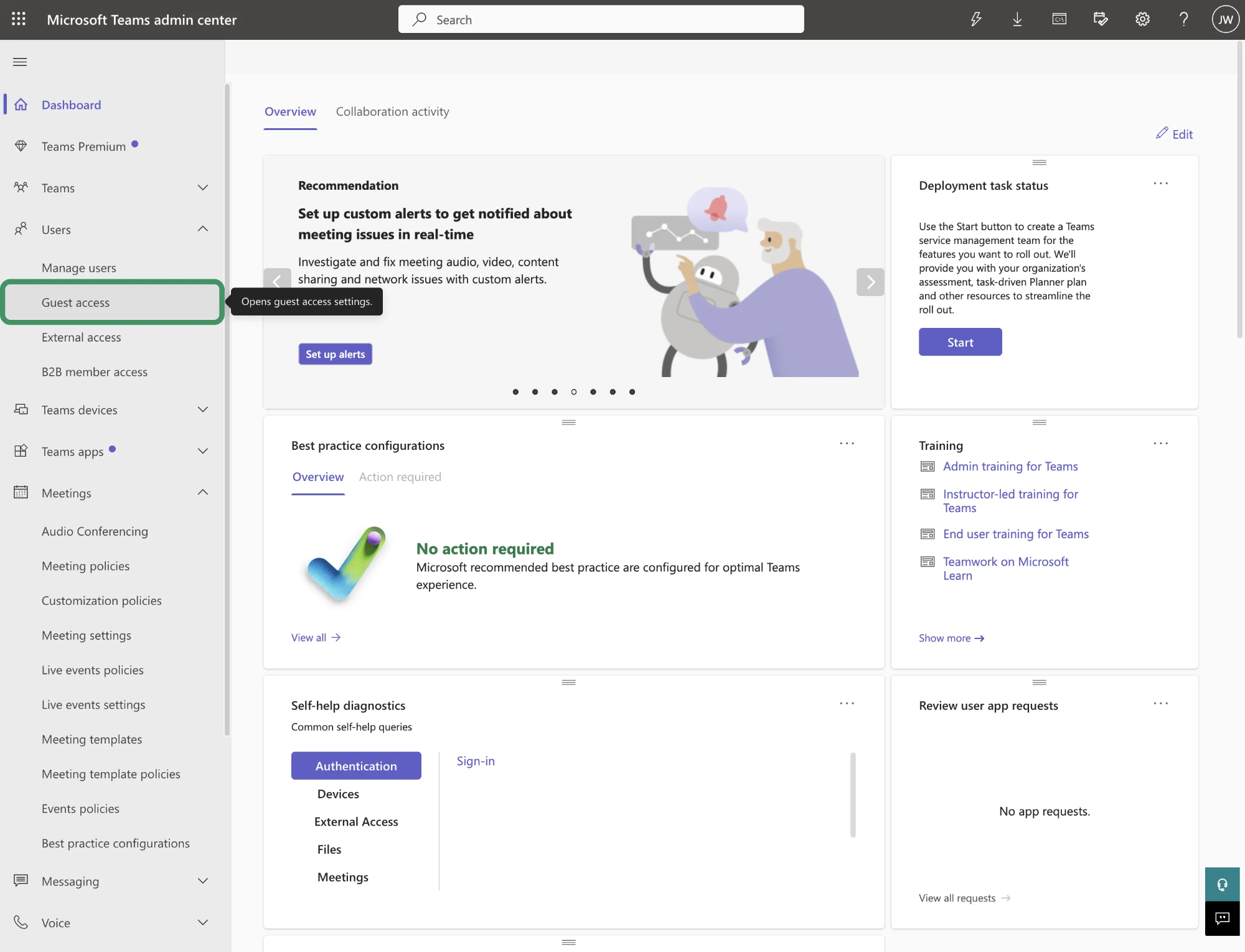
- Toggle Allow guest access to ON, then Save your changes.
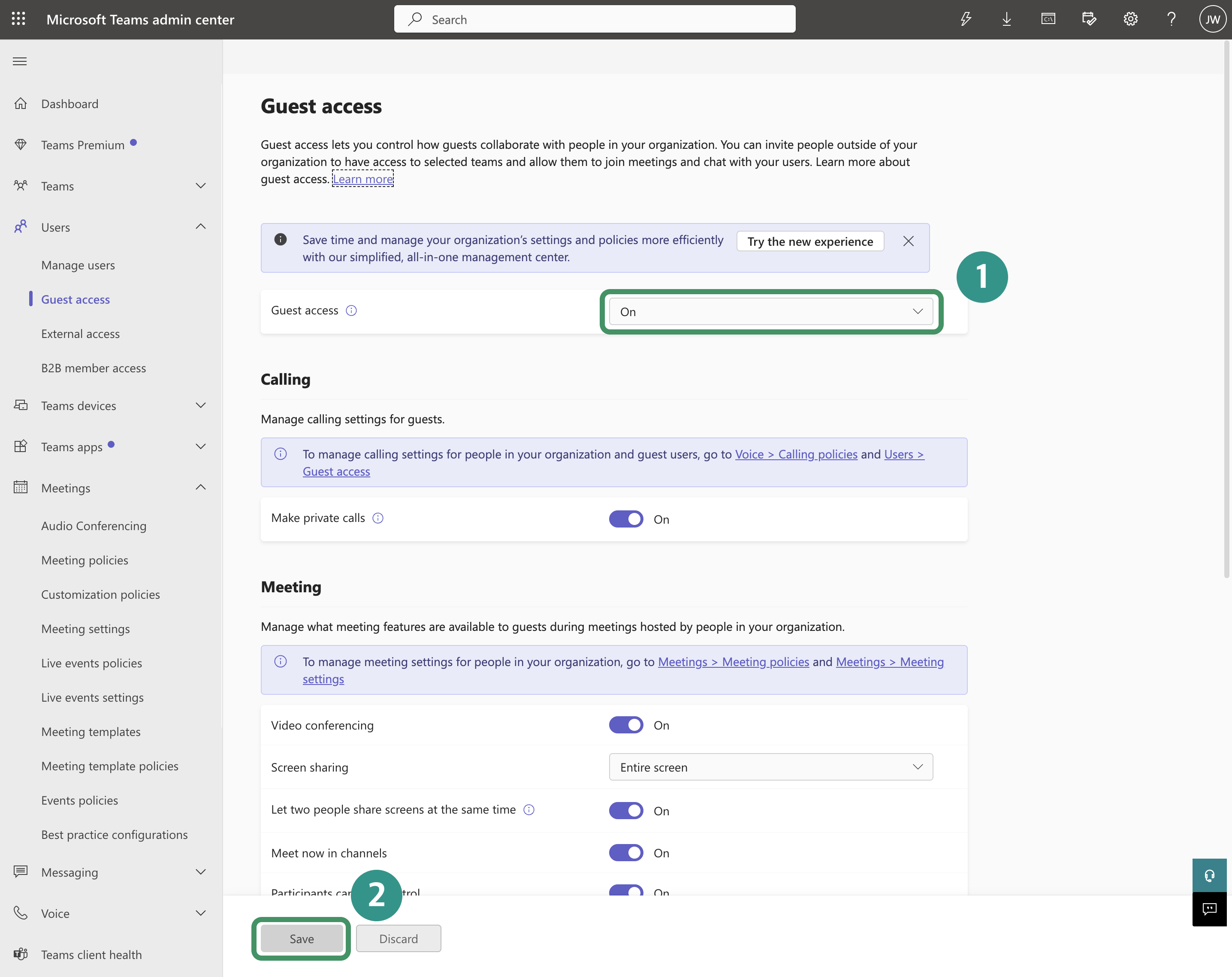
If this is disabled, Cabos won't be allowed into any of your Teams meetings.
(This setting is disabled by default on Microsoft Teams).
For detailed instructions, refer to Microsoft's official guides:
- Turn guest access in Microsoft Teams on or off
- Require verification checks to join Teams meetings and webinars in your org
Step 2: Bypass Lobby and Verification Requirements
You don't want Cabos to get stuck in the waiting room or be blocked by a CAPTCHA challenge. Here's how to prevent that:
- In the Teams Admin Center, go to Meetings > Meeting policies.
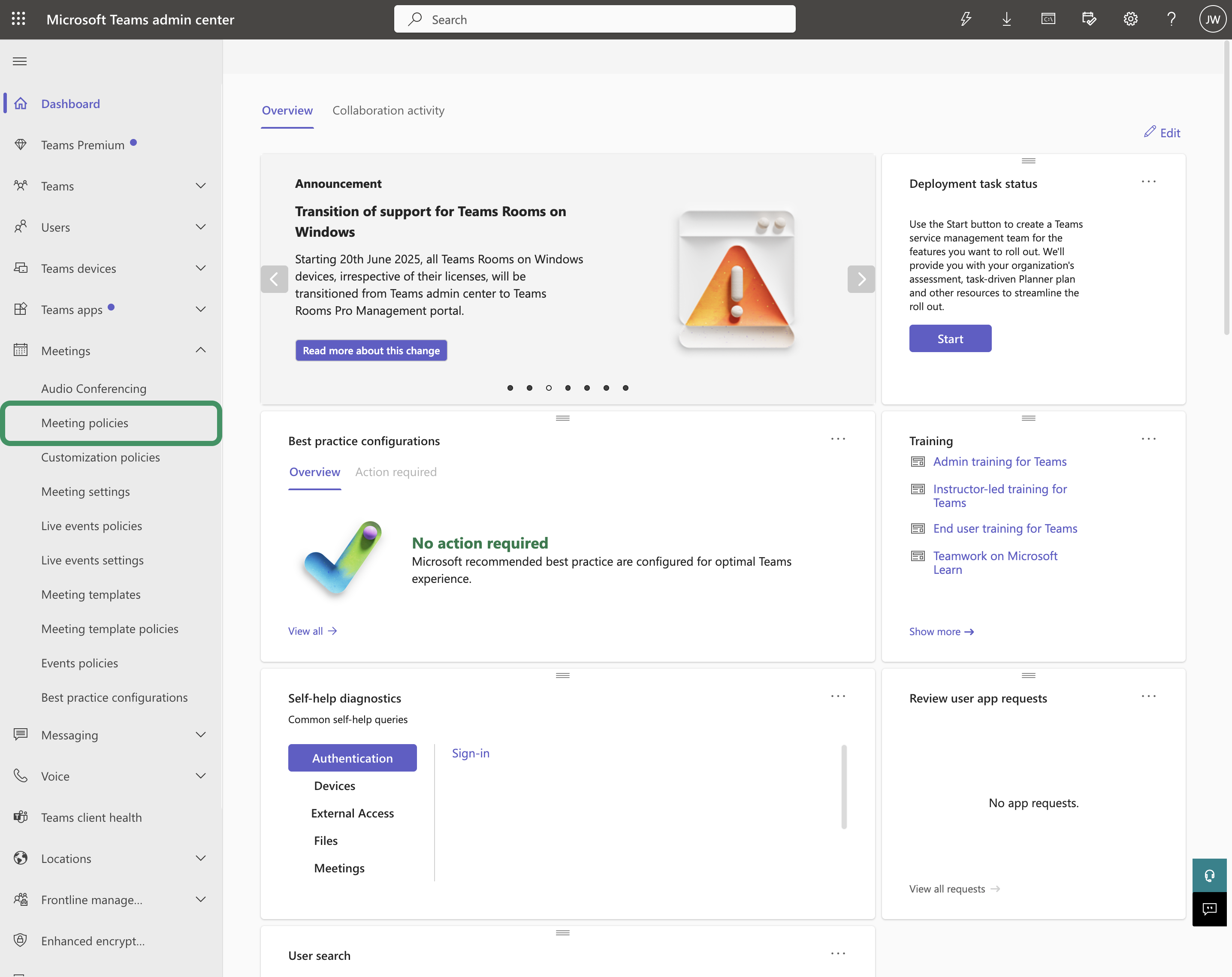
- Select the policy you want to modify (typically "Global (Org-wide default)").
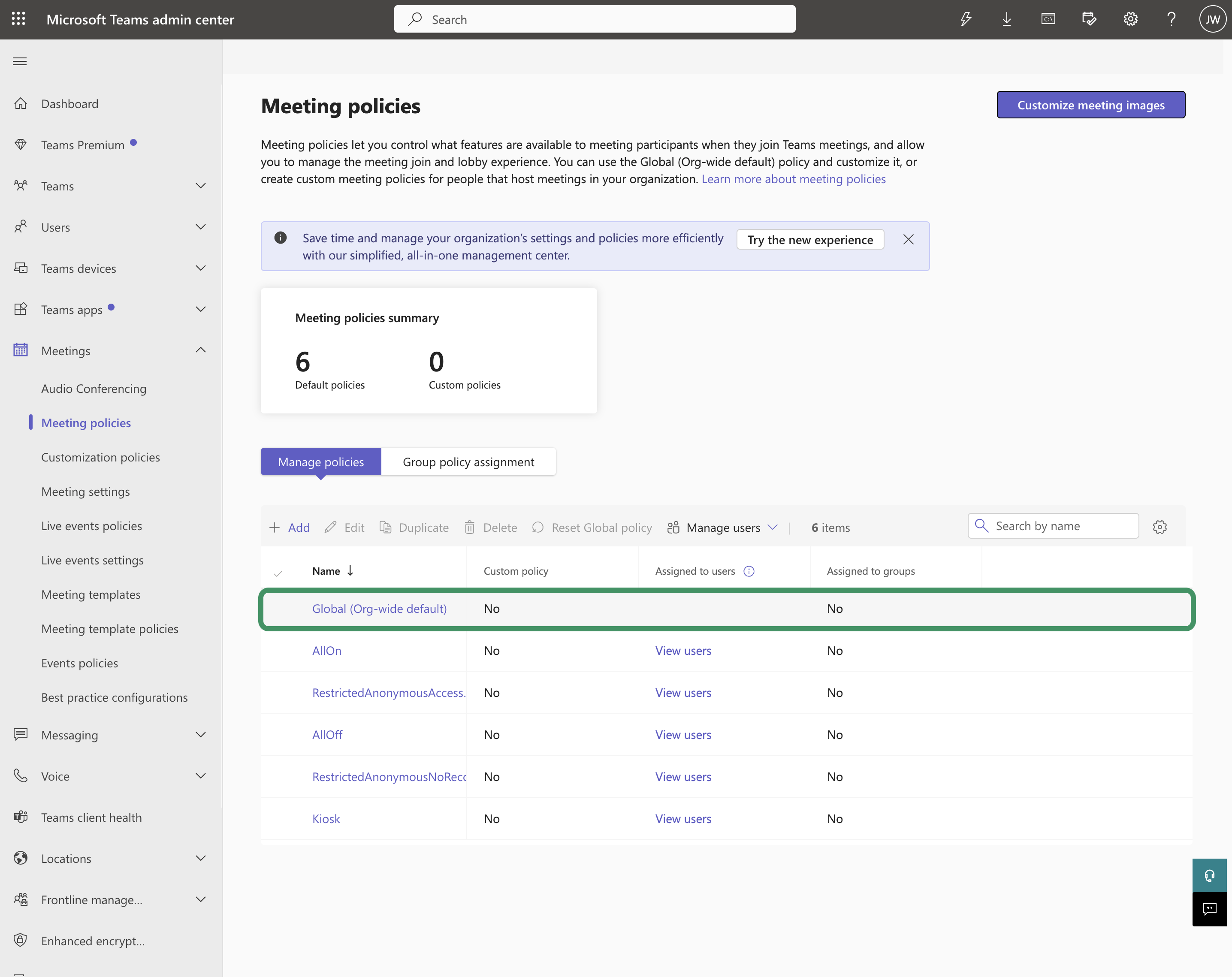
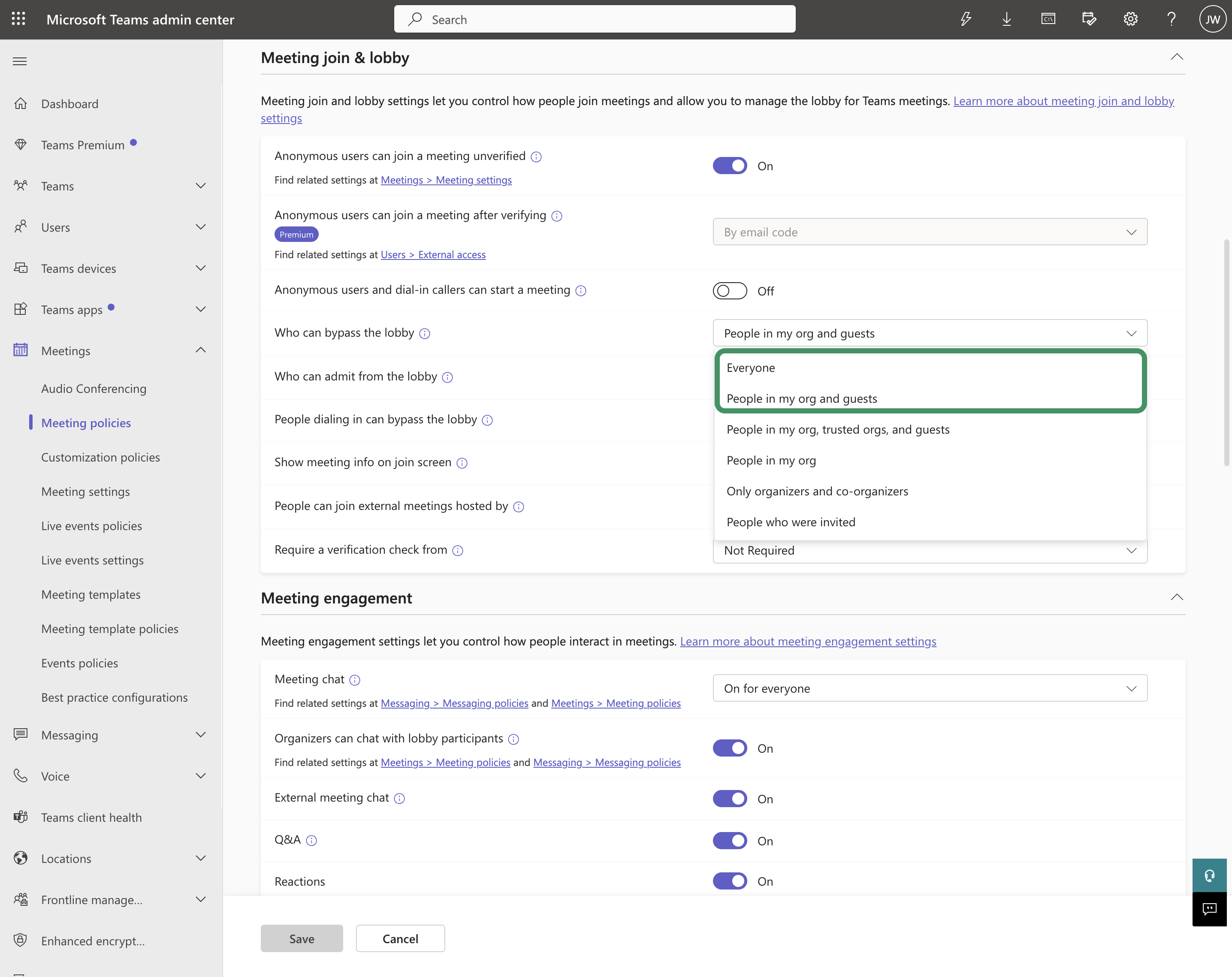
- Go to the Meeting join & lobby section and configure the following:
A. Who can bypass the lobby
- Recommended: "People in my org and guests" or "Everyone"
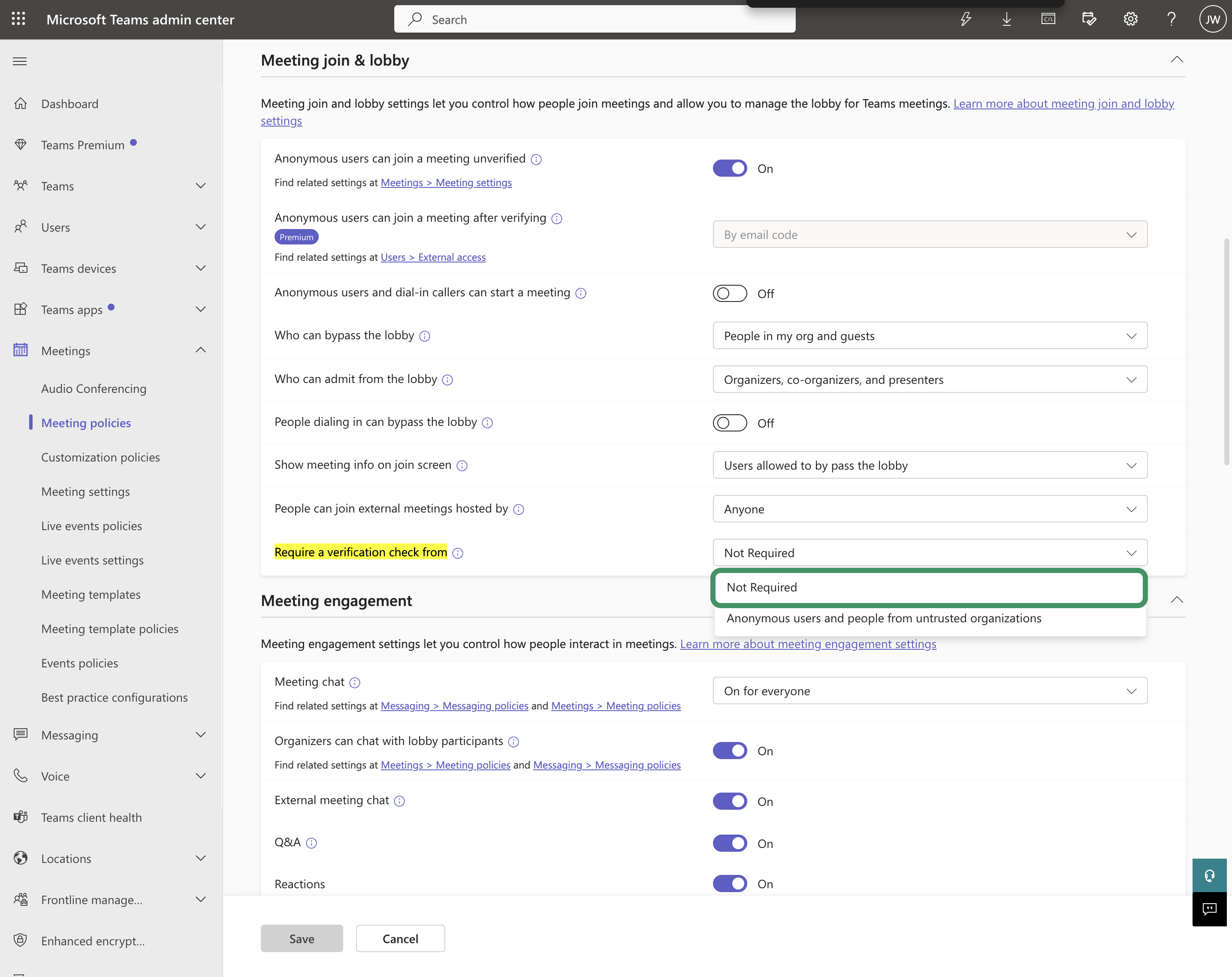
B. Require a verification check from
- Recommended: "Not Required" (which is a default setting)
If Cabos is stuck in the lobby, the meeting won't be recorded.
Step 3: Microsoft 365 Meeting Settings
If you're using Microsoft 365, ensure that "Anonymous users can join a meeting" is turned ON in both:
- Meeting Settings
- Meeting Policies (recent Microsoft 365 update)
Step 4: Invite Cabos to Your Meeting
Now that your Teams settings are configured, you're ready to invite Cabos to your meetings.
When you schedule an interview through Cabos, the bot will automatically join your Microsoft Teams meeting at the scheduled time — no manual invitation required.
During the Meeting: What to Expect
Here's what happens when Cabos joins your Microsoft Teams meeting:
- Cabos will attempt to join at the scheduled meeting time
- Depending on your lobby settings, Cabos may need to be manually admitted
- Once admitted, Cabos appears as a regular participant in the meeting
- After the meeting ends, you'll receive the meeting recap via email and your Cabos dashboard
Troubleshooting Checklist
If Cabos didn't join your meeting, verify the following:
- Guest access in Microsoft Teams is ON
- Lobby setting allows guests to bypass
- Your calendar invitation contains a Teams meeting link
- Auto-Join is configured or you manually invited Cabos
- You waited at least 3 minutes before removing Cabos from the meeting