Expert Sourcing
Expert Sourcing helps you accelerate the process of identifying qualified candidates for expert interviews.
A Segment is the core concept behind sourcing. A Segment represents the target persona of interview candidates you’re looking for. You can define a Segment by providing requirements in a free-text form. Once a Segment is created, Cabos automatically handles candidate collection, evaluation, and enrichment. You can simply select candidates for outreach, while monitoring progress and stepping in only when decisions or messaging are needed.
Table of Contents
1. Set up LinkedIn Account
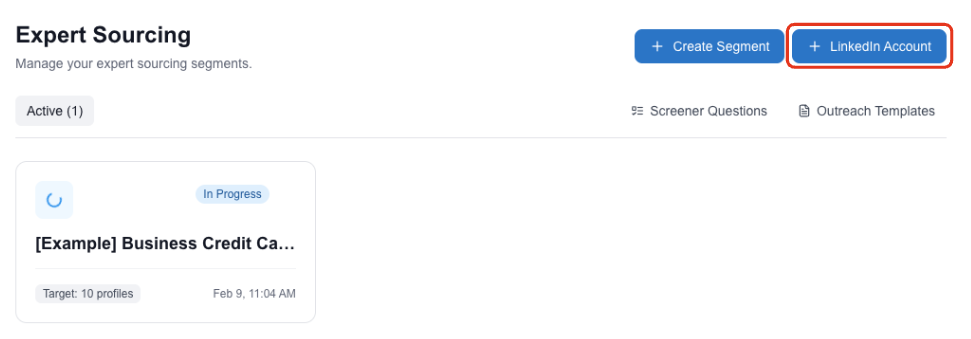
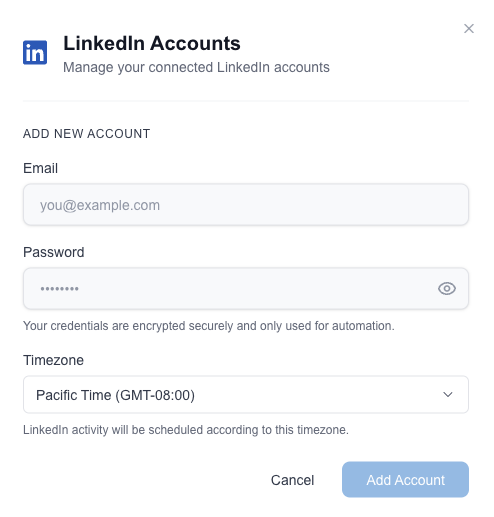
Click Add LinkedIn Account. Fill in your email, password, and timezone, then submit the form. Cabos will attempt to authenticate your account.
LinkedIn will send you a verification request through one of two methods:
- Mobile app notification — Approve the login request directly in your LinkedIn mobile app.
- SMS passcode — Enter the passcode sent to your phone number. Copy the passcode and paste it into the verification field on Cabos. Once the account is connected, it will appear under "Connected Accounts" with a green indicator.
2. Creating a Segment
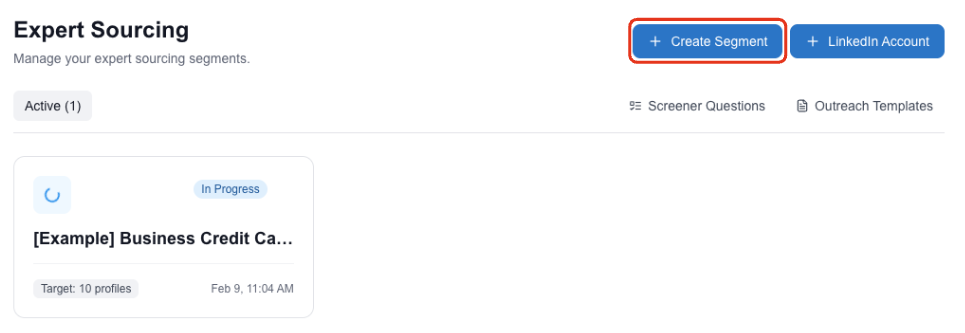
Click Create Segment. This opens an AI-powered chat interface where you can describe your ideal candidate in natural language.
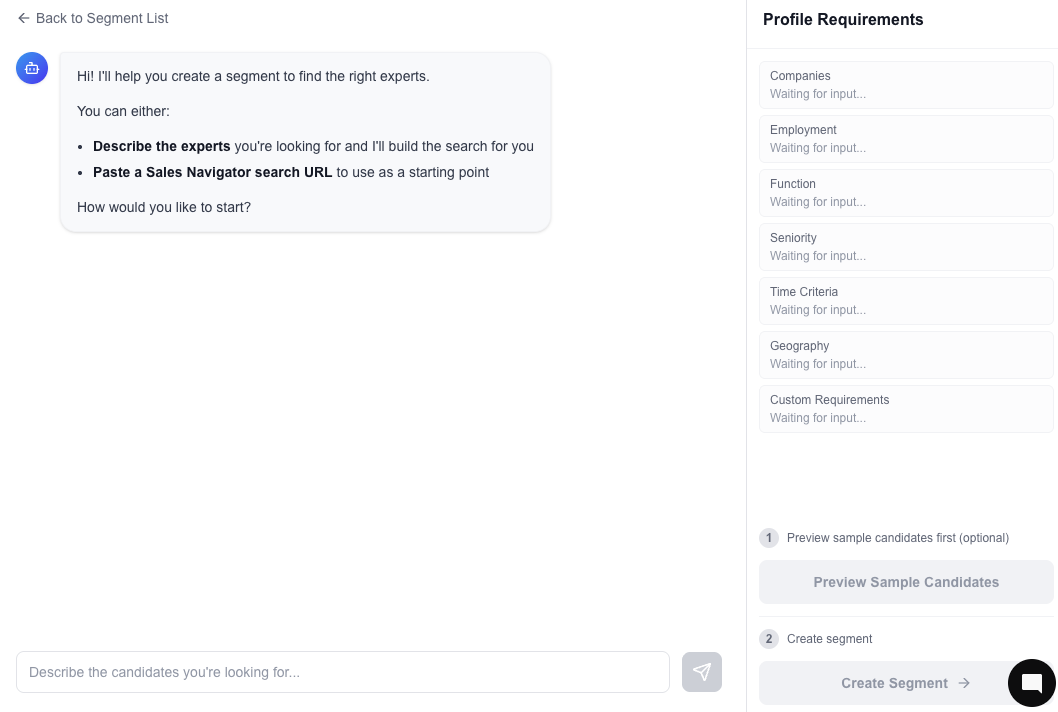
Simply tell Cabos who you're looking for in plain language.
- "Former supply chain directors at Amazon"
- "Senior engineers at Tesla with battery experience"
What happens next:
- Cabos extracts filters automatically — As you chat, Cabos parses your description and populates search filters in real time on the right panel. These include:
- Target Companies
- Employment Status (current or former employees)
- Function (e.g., Engineering, Operations)
- Seniority Level (e.g., Director, VP)
- Time Criteria (e.g., minimum tenure, months since departure, active years)
- Geography
- Custom Requirements — Any additional criteria described in free text. Cabos will incorporate these into its evaluation.
-
Review and edit filters — You can click on any extracted filter card to edit it directly.
-
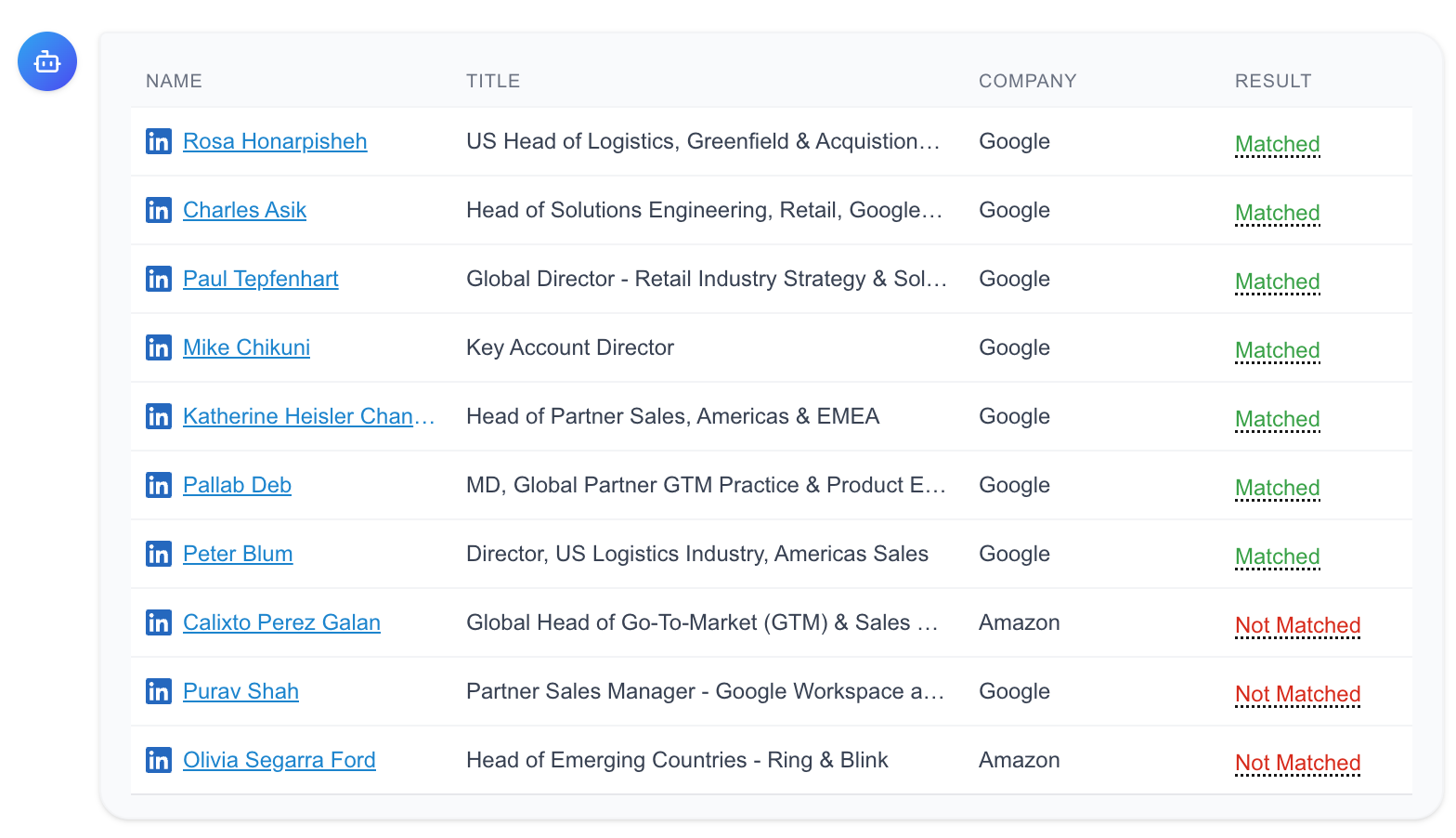
Preview sample candidates — Once all required filters are filled, click Preview Sample Candidates to generate a sample of 10 profiles. This lets you validate the filters before committing to a full sourcing run.
-
Create Segment — After reviewing the sample, click Create Segment to configure:
- Segment Name (auto-suggested based on your description)
- LinkedIn Account to use for sourcing
- Interviews to Schedule
- Interview Information (Duration, Honorarium Rate)
3. Candidate Tracker
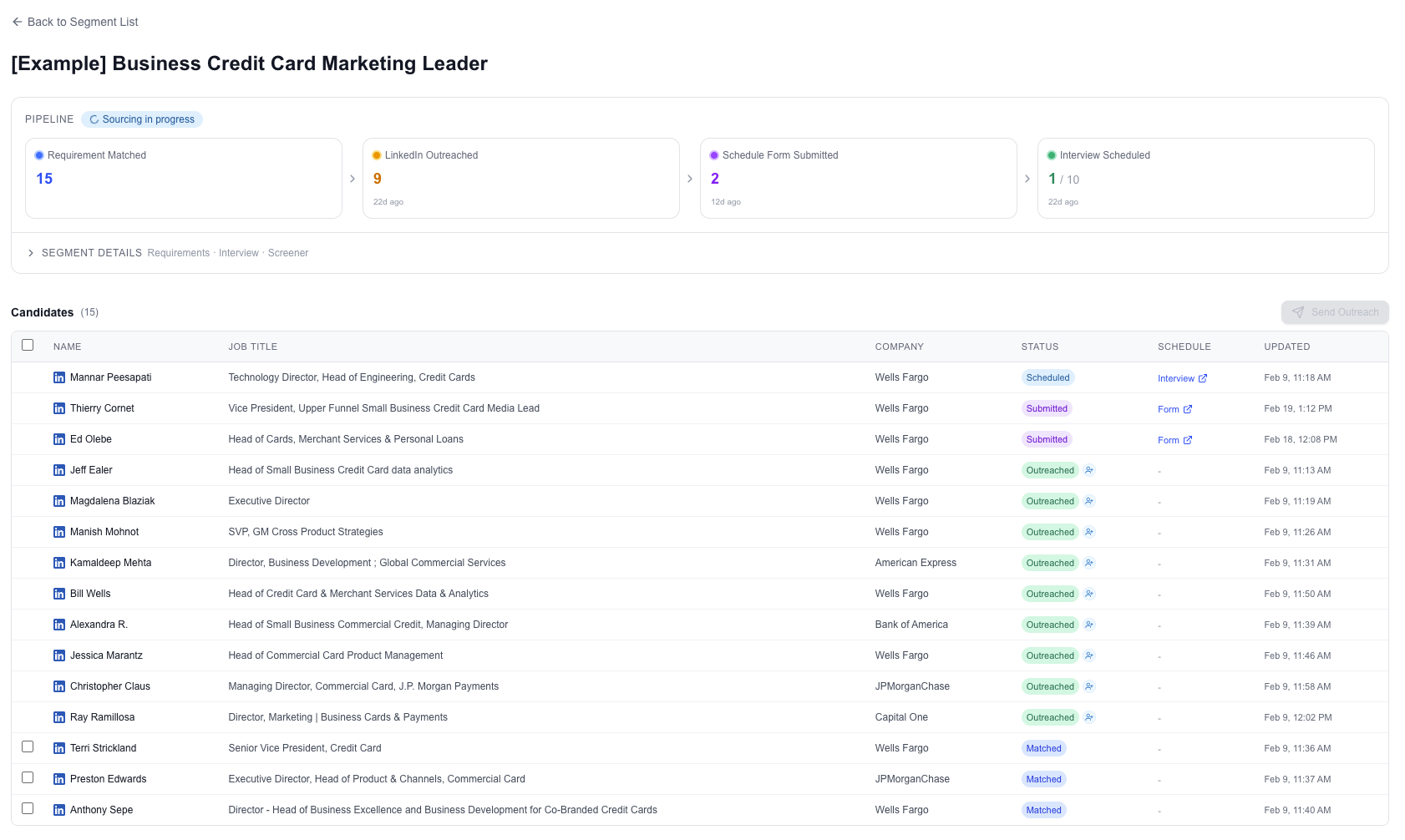
Once you create a Segment, Cabos automatically pulls candidates and evaluates them in the background. The Sourcing Tracker gives you real-time visibility into each candidate's progress.
At the top of the tracker, the Segment Status Bar displays the current Segment status, available control actions, and key details such as interview information and applied filtering criteria.
The bottom section is the Candidate Tracker, which displays detailed information for each candidate in the Segment:
- Name, Job Title, and Company
- Candidate Status
- Pending: The candidate’s initial state.
- Evaluated: Cabos has completed its evaluation of the profile.
- Outreach Planned: An outreach message (connection request or InMail) has been scheduled.
- Outreached: The outreach message has been sent to the candidate.
- (Availability) Submitted: The candidate has shared their preferred times for an interview.
- (Interview) Scheduled: The interviewer has reviewed the availability and scheduled the interview
- Schedule column is available when Cabos Scheduler is enabled.
- Interview: For candidates with scheduled status — links to the scheduled interview page.
- Form: For candidates with submitted status — links to the form response submitted by the interviewee.
4. Outreach Requests
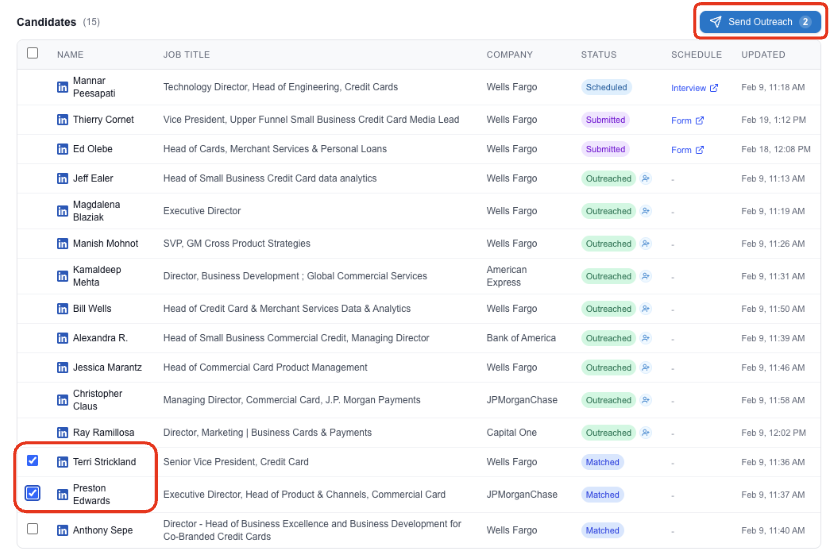
After reviewing Cabos’s evaluation results, you can select candidates and send outreach messages directly from the Candidate Tracker.
For some candidates, you may see the Free InMail indicator. Open Profiles allow you to send InMails without using InMail credits, making them a cost-effective option for outreach.
To help you prioritize who to contact, Cabos also surfaces Profile Quality signals. High-quality profiles are typically more complete and active on LinkedIn, and are more likely to respond to outreach.
We provide 2 outreach models on LinkedIn: Connection Requests and InMails.
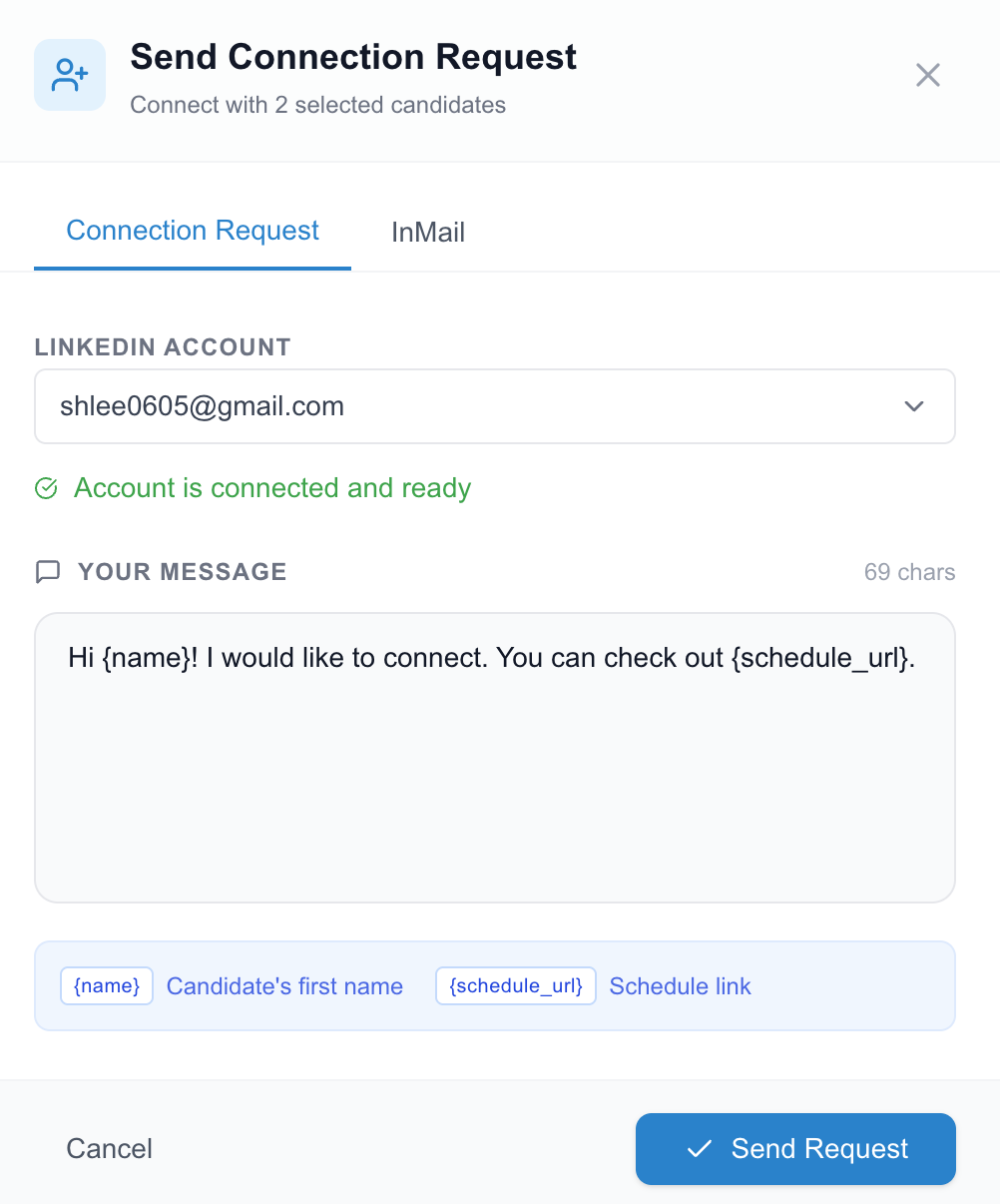
You can personalize outreach messages at scale using built-in variables, including:
{name}Automatically inserts the candidate’s name{schedule_url}Inserts a personalized scheduling link for the candidate
5. Daily Action Limits on Cabos
To keep your LinkedIn account safe, we enforce the action limits for each LinkedIn account connected.
- InMails: 100 / day
- Connection Requests: 100 / day
In addition, Cabos performs outreach actions only during business hours (8:00 AM–8:00 PM local time) to align with normal LinkedIn usage patterns.
Next Step: link