How to Invite Cabos Notetaker to Record Teams Meetings
This guide explains how to invite the Cabos Note Taker bot to automatically record your Microsoft Teams meetings.
It walks you through the required steps—from providing a Teams meeting link to choosing when the Bot should join, either immediately or on a scheduled time.
Once set up, the Cabos Bot will join the meeting, record the conversation, and automatically generate a transcript and structured notes after the meeting ends.
1. Scheduling a bot using meeting link
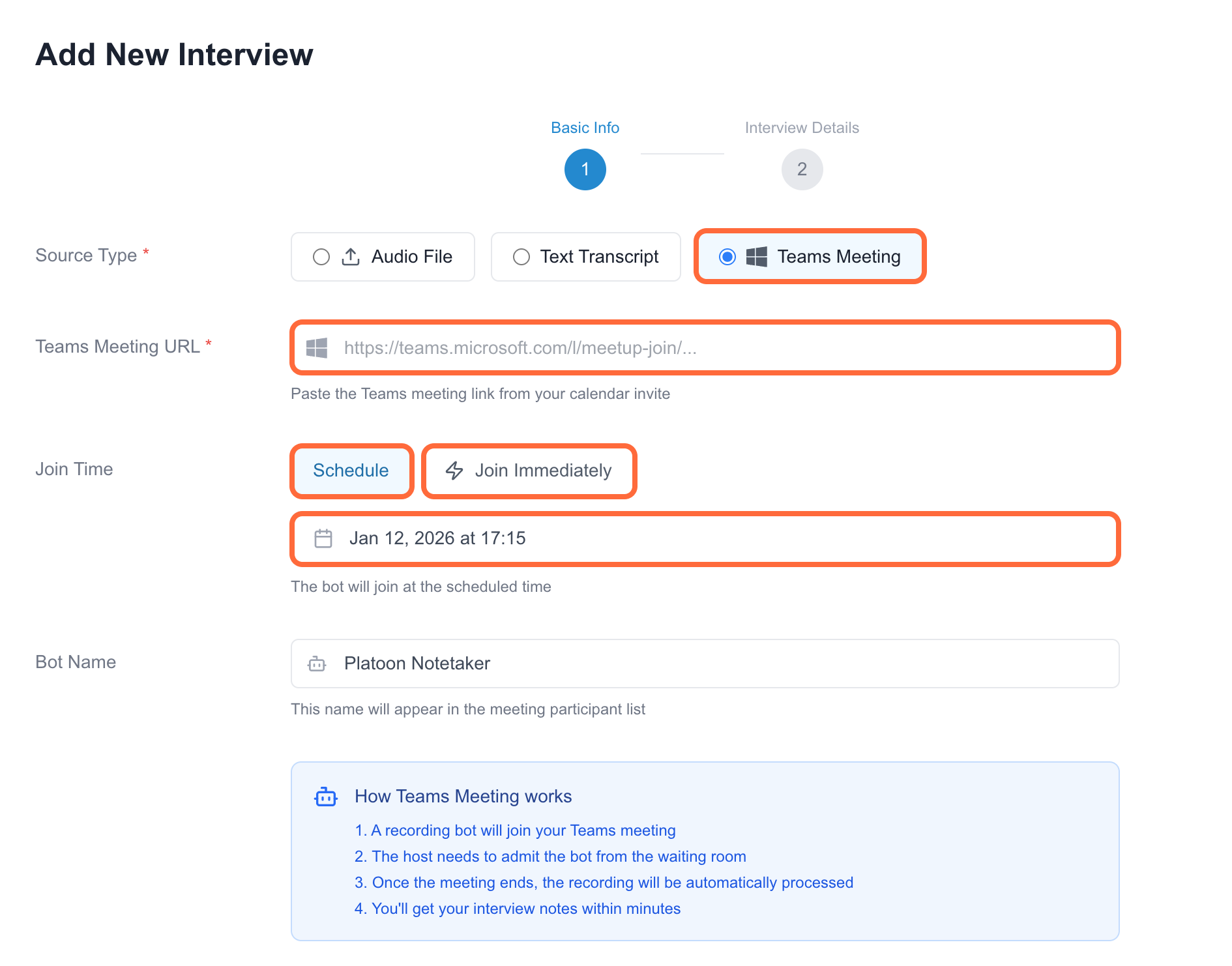
On the New Interview page, select Teams Meeting. You’ll need to provide two required inputs:
-
Teams Meeting URL Enter the Teams meeting link from Microsoft Teams or your Outlook calendar. If this is your first time inviting the Bot, please refer to this guide to ensure the Bot is allowed to join the meeting. → link
-
Join Time You can schedule the Bot to join a future meeting, or invite it to an ongoing meeting immediately. Scheduled join times are available in 15-minute increments. If you select Join Immediately, the Bot will request to join the meeting right away without selecting a specific time.
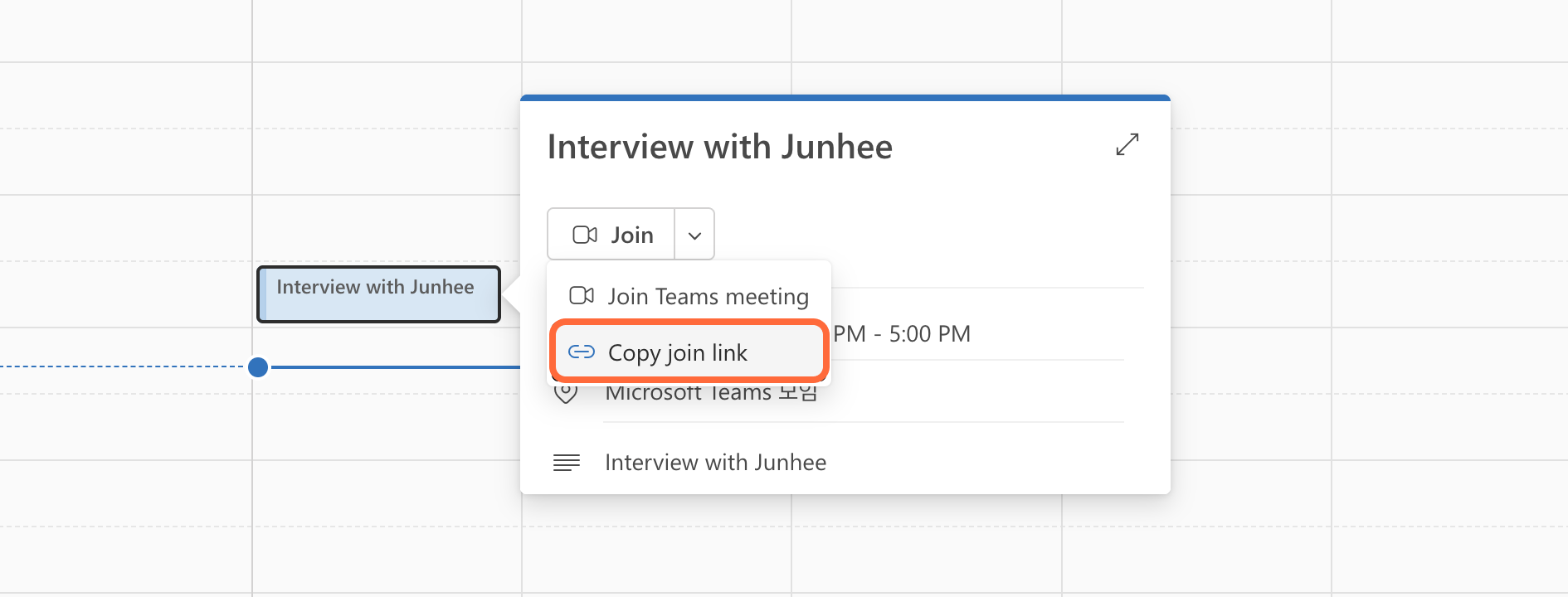
Teams meeting links can be copied from your Outlook calendar by clicking “Copy join link.”
Scheduled meetings will be labeled as Scheduled. Selecting Join Meeting will take you to the Teams meeting, while choosing Cancel Recording will delete the upcoming interview and cancel the scheduled Bot.
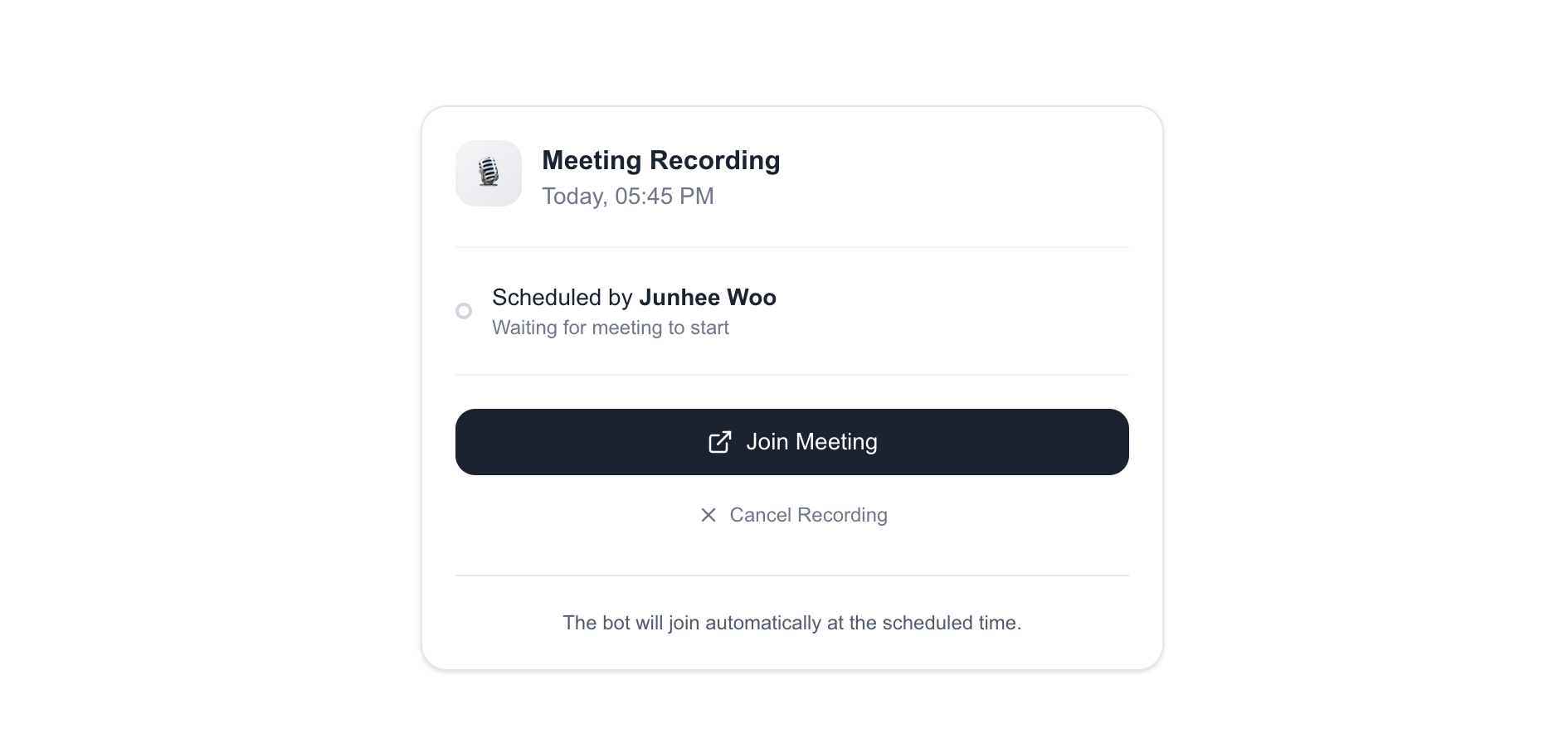
For scheduled meetings, the Cabos Bot will request to join the Teams meeting at the scheduled time. If Join Immediately is selected, the Bot will request to join the meeting right away. If the Bot does not join, it may be due to meeting settings—please refer to this guide to review the Bot access configuration. → link
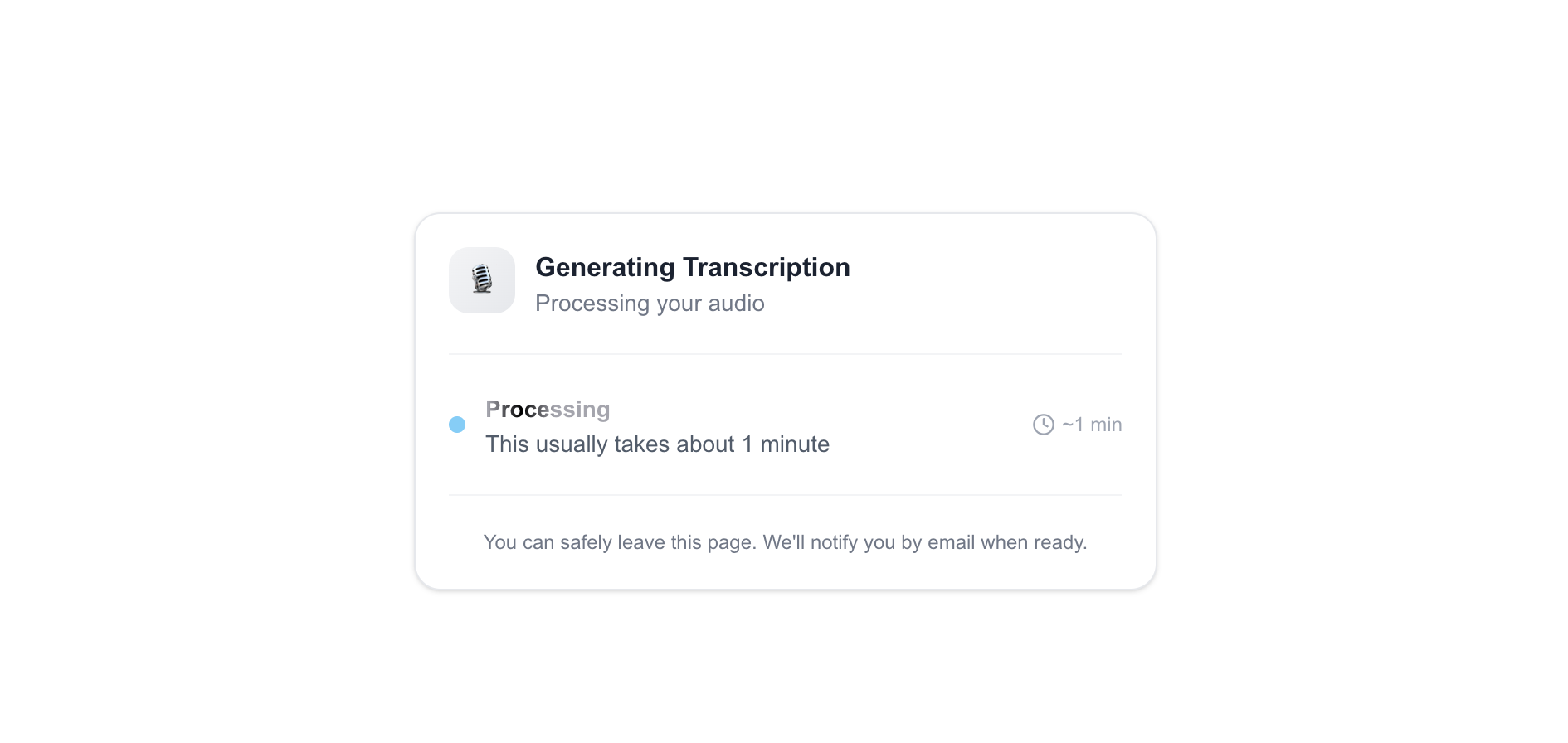
After the meeting ends, Cabos automatically generates a transcript and creates notes based on the recorded conversation
2. Scheduling a bot by inviting to a calendar event
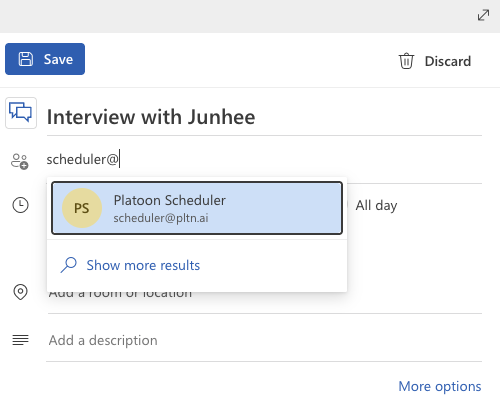
Another way to invite the Cabos Bot is to add scheduler@cabos.ai directly to your Microsoft Teams meeting as a participant.
Once the calendar invitation is sent successfully, you will receive a confirmation email indicating that the meeting has been registered.
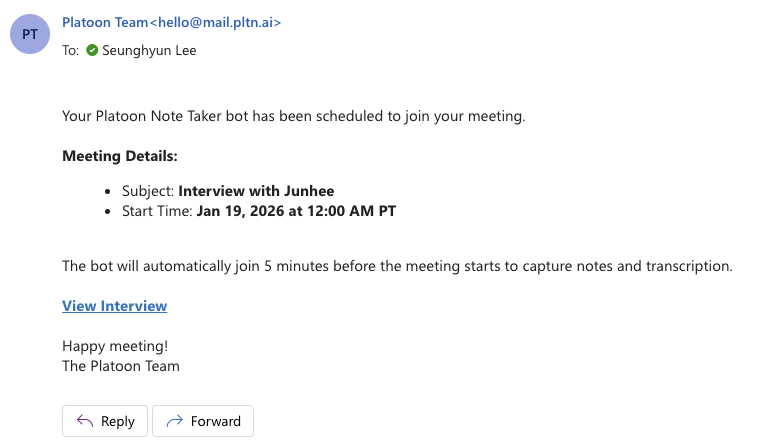
Click View Interview in the email to open the meeting page in the Cabos app. From there, you can:
- Click Join Meeting to enter the Teams meeting, or
- Join the meeting directly from your calendar.
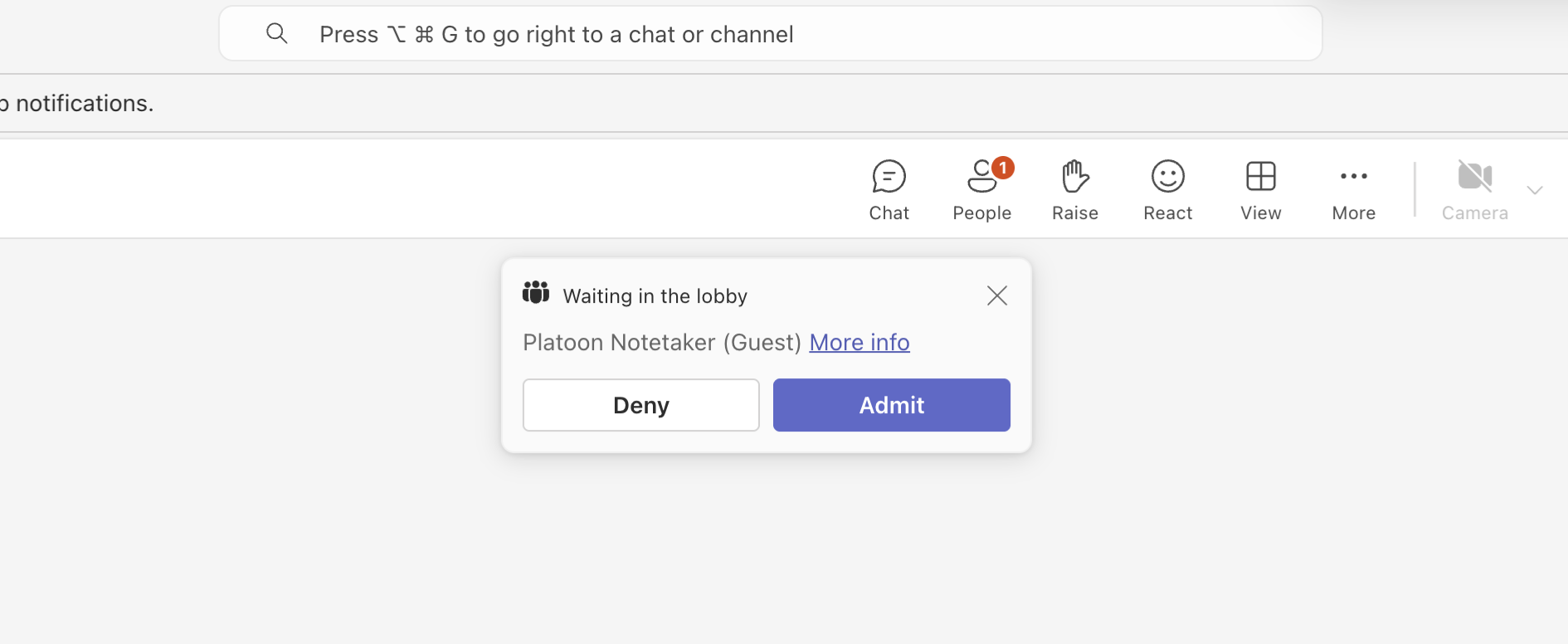
The Cabos Notetaker will enter the meeting lobby 5 minutes before the scheduled start time. When prompted in Microsoft Teams, click Admit to allow the Bot to join the meeting.
After the meeting ends, Cabos automatically generates a transcript and creates notes based on the recorded conversation.