Screeners
A screener is a short set of questions a candidate answers before scheduling. Build one once at the project level and attach it to any segment.
Open from a project: Sourcing → Screeners.
Create a screener
-
Click New Screener and give it a name.
-
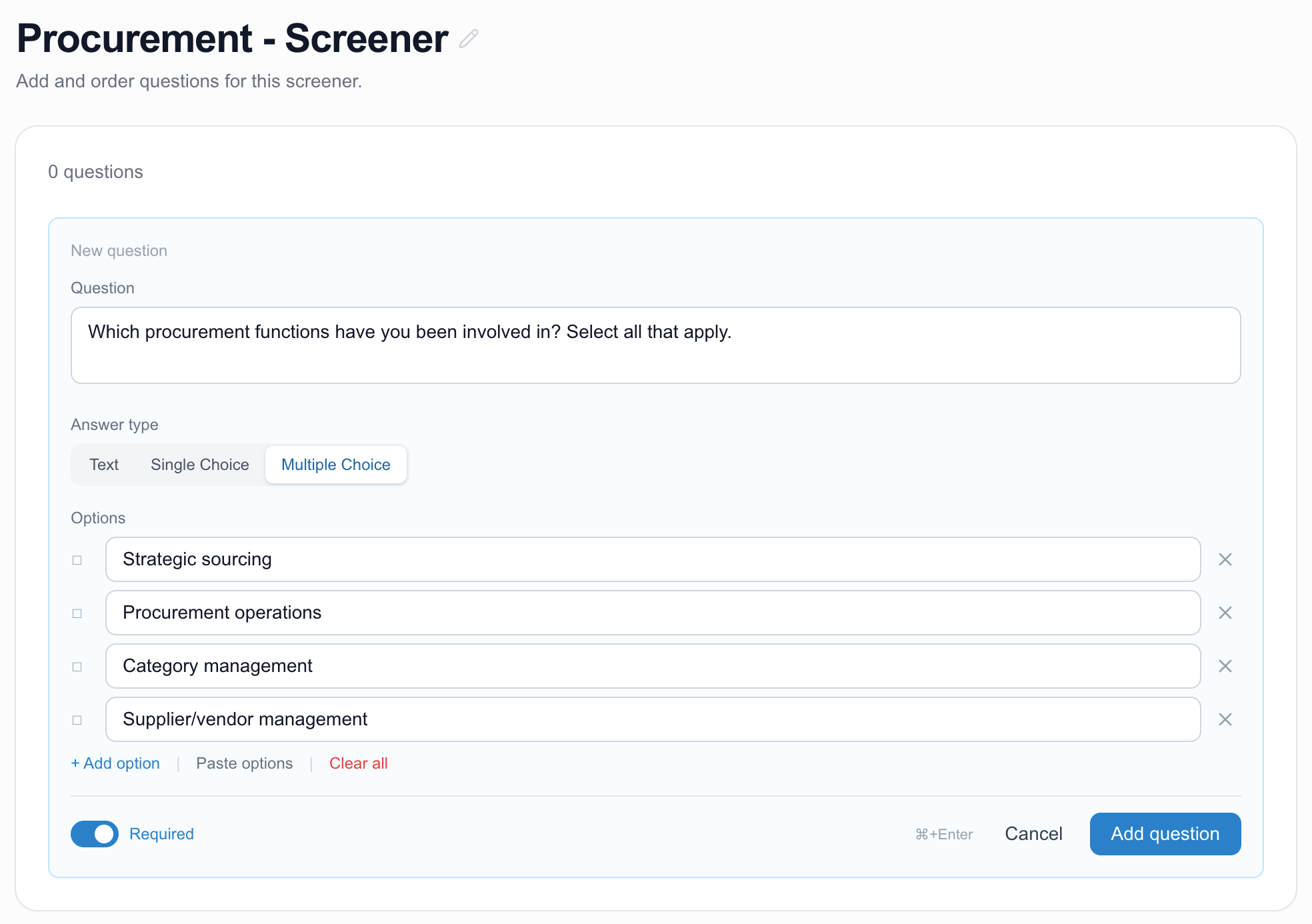
Click Add Question and pick an answer type:
- Text — free-form response.
- Single Choice — radio buttons; you supply the options.
- Multiple Choice — checkboxes; you supply the options.
-
Toggle Required to block submission without an answer.
-
Drag to reorder. Changes save as you edit.
Attach to a segment
Toggle Use a screener in segment creation (Step 2), or change it later from the Segment Details drawer. Every candidate added to that segment will see the questions on their personalized scheduler page:
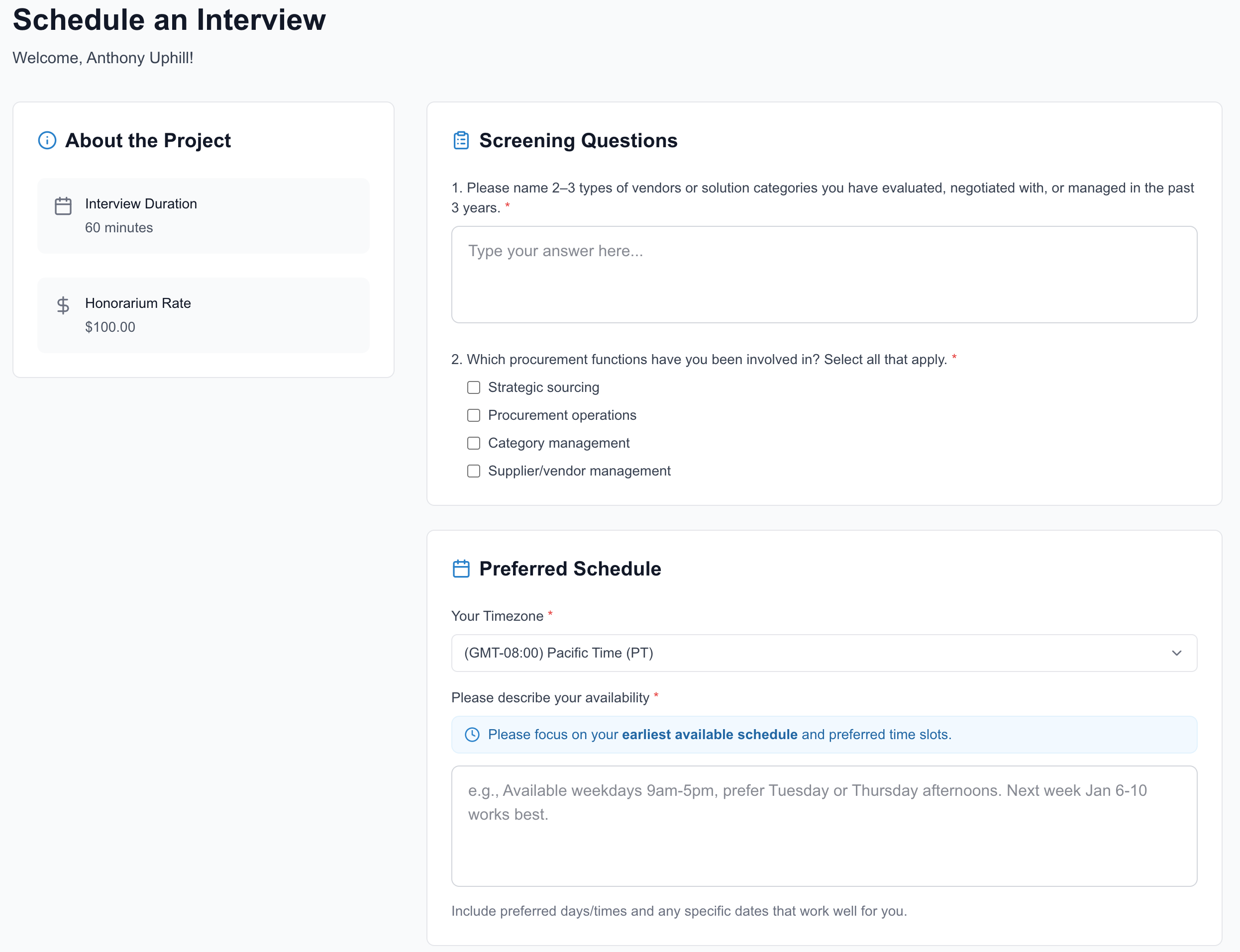
Edits to a screener apply everywhere it's attached. To use a different version for a different segment, create a new screener.
Review responses
Answers appear in the candidate detail drawer, and can be surfaced as columns in the candidates table for sorting and filtering.
Manage screeners
From the Screeners list, use the pencil to rename or the trash icon to delete. Existing responses are preserved on the candidate record; new candidates in that segment skip the screener until you attach a different one.