Sign Up & Create a Project
1. Sign up
Visit app.cabos.ai and create an account.
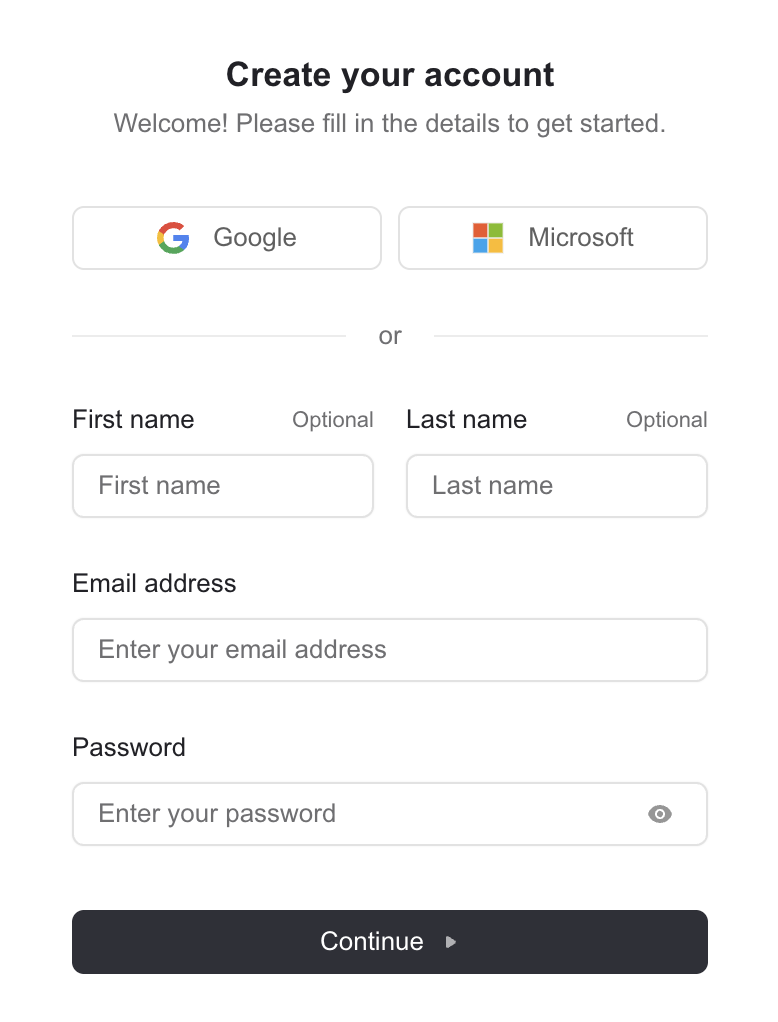
- You can sign in with Google or Microsoft, or sign up with your email and password. If your IT admin has not yet approved Cabos in Microsoft Entra ID, share the Microsoft Sign-In & Admin Consent Guide with them first.
- A personal organization is created automatically on your first sign-in. You'll be invited to a shared team organization separately if your team already uses Cabos.
- After signing up you land on My Projects.
2. Switching organizations
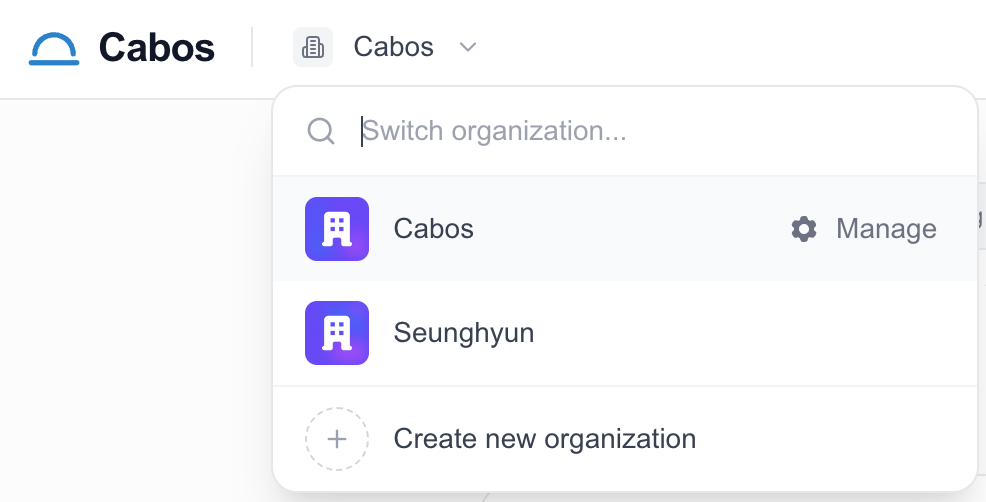
If you belong to more than one organization (for example, your personal org and a team org), switch between them from the organization picker in the top-left of the header. Each organization has its own projects, LinkedIn accounts, and subscription.
3. Create your first project
From My Projects, click New Project. The dialog asks for two things:
- Project Name — required. Use something descriptive, e.g. "Consumer Electronics PMI Study".
- Invite Team Members — optional. Add teammate emails one at a time; we suggest people from your organization as you type. Invitees receive an email and can join the project once they sign in.
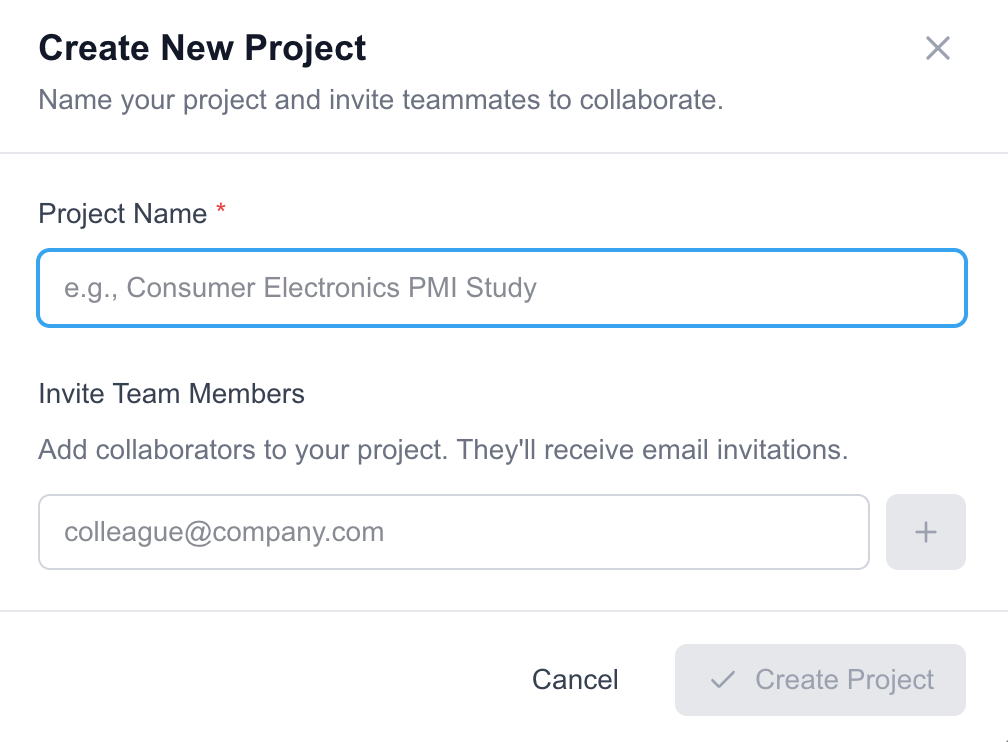
Click Create. You're taken straight to the project — the URL looks like /projects/<project-id>/segments because Segments is the default landing page inside a project.
4. Find your way around a project
Inside a project the left sidebar shows the Sourcing section:
- Segments — the main workspace. A segment defines the candidate persona you want to source.
- LinkedIn Accounts — the LinkedIn accounts your organization has connected to Cabos. Sourcing and outreach run from these accounts.
- Outreach Templates — reusable connection-request and InMail templates.
- Screeners — reusable screener question sets you can attach to a segment.
The header shows the organization picker, the project picker (to switch between projects in this org), and your profile menu.
5. Active vs Archived projects
The My Projects page has two tabs:
- Active — projects you and your teammates are actively working on.
- Archived — older projects, hidden from the default view but still accessible.
Open a project's settings to archive or restore it.
Next step: LinkedIn Accounts